Format Factory – Free Media Converter
Editor's Choice
What is Format Factory?
Format Factory is a free, comprehensive multimedia converter for Windows that converts video, audio, and image files between virtually any format including MP4, AVI, MKV, MP3, AAC, FLAC, JPG, PNG, and dozens more while offering additional tools for video editing, DVD ripping, disc burning, file compression, and multimedia repair—making it all-in-one media utility particularly popular in China and across Asia where over 300 million users rely on its zero-cost conversion capabilities as alternative to expensive commercial converters like Wondershare UniConverter ($39.99/year) or Movavi Video Converter ($39.95 one-time) that charge subscription or purchase fees for similar functionality Format Factory delivers completely free. Developed by Free Time (Picosmos) since 2008, Format Factory addresses ubiquitous multimedia problem: incompatible file formats preventing playback on specific devices, uploading to platforms with format requirements, or editing in preferred software requiring particular codecs—frustrations Format Factory eliminates through universal conversion supporting hundreds of format combinations accessible to non-technical users through straightforward interface.
Format Factory excels through comprehensive format support and practical features—converting videos between MP4, AVI, MKV, FLV, WMV, MOV, 3GP, and more with codec and quality customization, converting audio files between MP3, AAC, FLAC, WAV, OGG, M4A, and other formats, converting images between JPG, PNG, BMP, GIF, TIFF, ICO, and additional formats, ripping DVDs to digital video files for backup and mobile playback, joining multiple video or audio files into single merged file, extracting audio from video files creating MP3 from MP4, rotating and cropping videos fixing orientation or removing unwanted areas, adding watermarks and subtitles to videos, compressing files reducing size while maintaining acceptable quality, and repairing damaged video files that won’t play correctly. Whether converting 4K GoPro footage to device-compatible format, extracting audio from YouTube videos for music library, converting FLAC to MP3 for car stereo compatibility, digitizing DVD collection for tablet viewing, or batch-converting hundreds of files overnight, Format Factory handles multimedia conversion needs commercial software monetizes.
Beyond core conversion, Format Factory offers useful utilities including picture screen capture, audio/video muxing combining streams, CD/DVD/Blu-ray burning, ISO creation from files or discs, media information viewing showing codec and bitrate details, custom output profiles saving frequently-used settings, GPU acceleration for faster video encoding on compatible NVIDIA and AMD graphics cards, and batch processing queue handling multiple files sequentially or parallel. While Format Factory’s interface feels dated with early-2000s Windows aesthetic, includes bundled software offers during installation requiring careful declining, and provides Chinese-origin development sometimes raising unfounded security concerns among Western users, its combination of truly free comprehensive conversion supporting virtually every common format, straightforward operation accessible to beginners, and powerful batch capabilities make it indispensable Windows multimedia tool for budget-conscious users, home media enthusiasts, and anyone needing reliable format conversion without subscription fees or trial limitations.
Key Features
- Video Conversion: Convert between MP4, AVI, MKV, FLV, WMV, MOV, 3GP, and many more formats.
- Audio Conversion: Convert between MP3, AAC, FLAC, WAV, OGG, WMA, M4A, and other formats.
- Image Conversion: Convert between JPG, PNG, BMP, GIF, TIFF, ICO, WebP, and more.
- DVD Ripping: Extract video from DVDs to digital files for backup and portable playback.
- Video Joining: Merge multiple video or audio files into single continuous file.
- Audio Extraction: Extract audio tracks from video files creating standalone audio files.
- Batch Processing: Convert multiple files in queue with different format requirements.
- GPU Acceleration: Hardware encoding using NVIDIA CUDA and AMD for faster conversion.
- Video Editing: Basic editing including rotation, cropping, watermarks, and subtitle adding.
- File Compression: Reduce file sizes while maintaining quality through codec and bitrate adjustment.
- Media Repair: Attempt to repair corrupted video and audio files.
- Disc Burning: Create audio CDs, video DVDs, and data discs.
- ISO Creation: Create ISO images from files or physical discs.
- Custom Profiles: Save frequently-used conversion settings for quick reuse.
- Media Information: View detailed codec, resolution, bitrate, and format information.
What’s New in Format Factory 2024/2025
- Format Factory 5.17+: Latest versions with improved conversion and bug fixes.
- Better Windows 11 Support: Improved compatibility with Windows 11 interface and features.
- Enhanced GPU Acceleration: Better NVIDIA and AMD hardware encoding support.
- New Format Support: Added support for newer formats like AV1 and WebP.
- Improved Conversion Speed: Optimized encoding engines for faster processing.
- Better 4K Support: Improved handling of 4K and high-resolution video conversion.
- Updated Codecs: Latest codec libraries with better quality and compatibility.
- UI Improvements: Minor interface refinements while maintaining familiar layout.
- Enhanced Batch Processing: Better queue management and parallel processing options.
- Bug Fixes: Resolved conversion errors and stability issues.
System Requirements
Windows
- Windows 11, 10, 8.1, 8, 7, Vista, XP (32-bit and 64-bit)
- Intel Pentium 4 or AMD equivalent processor (multi-core recommended)
- 512 MB RAM minimum (2 GB+ recommended for video conversion)
- 100 MB disk space for installation (plus storage for converted files)
- DirectX 9.0c or later for GPU acceleration
- NVIDIA or AMD GPU with CUDA/OpenCL support (optional, for hardware acceleration)
How to Get Started with Format Factory
- Download: Visit pcfreetime.com (official site) or trusted download source for Format Factory installer.
- Install Carefully: Run installer—DECLINE bundled software offers during installation (uncheck all boxes).
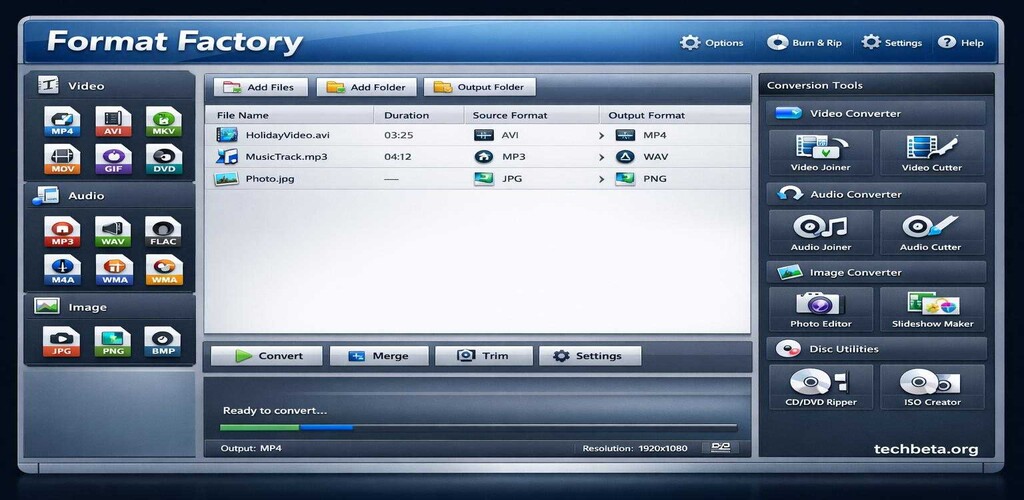
- Launch Application: Open Format Factory—main window shows conversion type categories.
- Choose Conversion Type: Select Video, Audio, or Picture based on file type you’re converting.
- Select Output Format: Click desired output format (e.g., “MP4” for video, “MP3” for audio).
- Add Source Files: Click “Add File” and select files to convert (or drag and drop into window).
- Configure Settings (Optional): Click “Output Setting” to adjust quality, resolution, codec, and bitrate.
- Choose Destination: Select folder where converted files will be saved.
- Start Conversion: Click “Start” button—progress bar shows conversion status for each file.
- Review Output: Open destination folder and test converted files in media player.
- Batch Convert: Add multiple files with different output formats to queue before starting conversion.
- Enable GPU Acceleration: Options > Output Folder Configuration > Enable GPU acceleration if available.
Format Factory vs Alternatives
| Feature | Format Factory | HandBrake | Wondershare UniConverter |
|---|---|---|---|
| Price | Free | Free | $39.99/year |
| Media Types | Video, audio, images | Video only | Video, audio, images |
| Ease of Use | Easy (simple interface) | Moderate | Very easy |
| DVD Ripping | Yes (unprotected) | Yes (with libdvdcss) | Yes |
| Batch Processing | Yes | Yes (queue) | Yes |
| Best For | All-in-one free converter | Video conversion quality | Professional workflows |
Pros and Cons
Pros
- Completely Free: Zero cost for all features including video, audio, and image conversion.
- Comprehensive Format Support: Converts between virtually any common media format.
- All-in-One Tool: Combines conversion, DVD ripping, editing, and disc burning in single application.
- Easy to Use: Straightforward interface accessible to beginners and non-technical users.
- Batch Processing: Handle multiple files with different formats in single conversion queue.
- GPU Acceleration: Hardware encoding speeds up video conversion significantly on compatible systems.
- Additional Utilities: Includes file joining, audio extraction, compression, and repair tools.
- No Watermarks: Free version doesn’t add watermarks unlike some commercial converters.
- Custom Profiles: Save frequently-used settings for quick reuse on future conversions.
- Lightweight: Small installation footprint and reasonable resource usage during conversion.
Cons
- Bundled Software: Installation includes offers for additional software requiring careful declining.
- Dated Interface: Early-2000s Windows design feels archaic and cluttered.
- Windows Only: No macOS or Linux versions—strictly Windows application.
- Chinese Origin Concerns: Some users wary of Chinese software despite no evidence of malicious behavior.
- Inconsistent Translations: English interface has occasional translation errors and awkward phrasing.
- Limited Advanced Features: Lacks fine-grained control compared to FFmpeg or professional converters.
- Slower Than Competitors: Some conversions slower than HandBrake or commercial alternatives.
- Cannot Decrypt DVDs: DVD ripping works only on unprotected discs (like HandBrake).
Who Should Use Format Factory?
Format Factory is ideal for:
- Budget-Conscious Users: Needing comprehensive media conversion without subscription fees.
- Windows Users: Those on Windows platform wanting all-in-one conversion tool.
- Home Media Enthusiasts: Converting personal videos, music, and images between formats.
- DVD Collectors: Digitizing unprotected DVD collections for backup and mobile viewing.
- Device Compatibility Seekers: Creating files compatible with phones, tablets, TVs, and car stereos.
- Casual Converters: Occasional format conversion needs not justifying paid software.
- Students: Free multimedia conversion for school projects and personal use.
- Batch Converters: Processing large media libraries with varied format requirements.
- Beginners: Simple interface more approachable than complex tools like FFmpeg.
- Multi-Format Workers: Needing video, audio, and image conversion in single application.
Frequently Asked Questions
Is Format Factory safe or does it contain malware?
Format Factory itself is safe when downloaded from official website (pcfreetime.com) or reputable sources. Concerns arise from: bundled software offers during installation (carefully decline all offers), Chinese origin creating unfounded suspicion among some Western users, and antivirus false positives occasionally flagging installer due to bundled offers. Download from official source, decline all bundled software during installation, and you’ll have clean, safe converter. Avoid third-party download sites offering “modified” versions potentially containing malware. Millions worldwide use Format Factory safely—exercise basic precautions downloading from trusted sources and reading installation prompts carefully.
Why is Format Factory so slow compared to other converters?
Conversion speed varies based on: source file quality and size, output format and quality settings, hardware specifications and CPU/GPU capabilities, and whether hardware acceleration is enabled. Format Factory may appear slower because default settings prioritize quality over speed. Speed improvements: enable GPU acceleration (Options > Output Folder Configuration), reduce output quality/resolution for faster encoding, close other applications freeing CPU resources, and use hardware-accelerated formats (H.264 with NVENC/AMD). For absolute fastest conversion (with quality trade-off), consider HandBrake with hardware encoding or FFmpeg with optimized settings. For most casual users, Format Factory’s speed suffices for overnight batch processing.
Can Format Factory convert copy-protected DVDs and Blu-rays?
No. Like HandBrake and other free converters, Format Factory cannot decrypt commercial copy-protected DVDs or Blu-rays due to legal concerns. It works only on unprotected discs or video files that have been previously decrypted by third-party software like MakeMKV (free for DVDs, paid for Blu-rays). Workflow: use decryption tool to create unprotected video files, then use Format Factory to convert to desired format for device compatibility or size reduction. Format Factory focuses on conversion rather than circumventing copy protection, leaving decryption to specialized tools designed for that purpose.
What’s the best quality setting to use in Format Factory?
For video conversion, balance quality and file size: High Quality preset works well for most users maintaining near-original quality with reasonable sizes, Custom settings allow manual bitrate control (8-12 Mbps for 1080p H.264 is good balance), and avoid “Lowest Quality” presets producing poor results with blocky compression. For audio: 192-320 kbps for MP3 provides excellent quality, FLAC for lossless archival, and AAC at 128-192 kbps for good quality at smaller sizes. Start with High Quality preset, test output on intended playback device, and adjust if quality insufficient or files too large. Remember: you cannot improve quality beyond source—converting low-quality source won’t create high-quality output regardless of settings.
Final Verdict
Format Factory democratizes multimedia conversion by consolidating video, audio, and image format transformation—supporting hundreds of format combinations including MP4, AVI, MKV, MP3, FLAC, JPG, PNG, and virtually every common media format, providing DVD ripping for digitizing physical collections, offering batch processing handling multiple files with different output requirements, including useful utilities like file joining, audio extraction, and basic video editing, and enabling GPU acceleration for faster encoding—all completely free while commercial alternatives like Wondershare UniConverter charge $40/year for similar functionality. The all-in-one approach combining conversion, ripping, burning, and editing in single Windows application serves home media enthusiasts managing personal libraries, budget-conscious users needing occasional format conversion, students working on multimedia projects, and anyone facing device compatibility issues requiring specific file formats without justifying subscription fees for professional conversion software.
While bundled software during installation requires vigilant declining to avoid unwanted programs, dated interface feels cluttered and archaic compared to modern converter designs, Chinese origin creates unfounded wariness among some Western users despite lack of malicious behavior evidence, and conversion speed sometimes lags behind HandBrake or commercial alternatives optimized for performance, these limitations pale against Format Factory’s fundamental value—eliminating cost barrier to comprehensive multimedia conversion while proving single free application can handle video, audio, image, and disc tasks typically requiring multiple specialized tools or expensive commercial software suites. Download from pcfreetime.com (carefully declining bundled offers) and discover why over 300 million users worldwide trust Format Factory for format conversion, demonstrating that multimedia compatibility need not require technical expertise, expensive software subscriptions, or acceptance of limited free trials before forced upgrades—just free, comprehensive conversion serving practical media needs.
Developer:
Free Time (Picosmos)
Download Options
Safe & Secure
Verified and scanned for viruses
Regular Updates
Always get the latest version
24/7 Support
Help available when you need it
Pros & Cons Analysis
Pros
- Supports multiple file formats
- Batch conversion capability
- Free to use
- Easy to use interface
- Fast conversion speeds
Cons
- Limited advanced options
- May take time for large files
- Output quality depends on settings
- Ads in free version
System Requirements
- Windows 11/10/8/7/Vista/XP