FireShot
What is FireShot?
FireShot is a powerful browser extension that captures full webpage screenshots, including content that extends beyond the visible screen area through scrolling capture technology. Unlike basic screenshot tools that only grab what’s currently visible, FireShot automatically scrolls through entire web pages and stitches together a seamless, high-resolution image—making it indispensable for web developers documenting designs, marketers capturing competitor pages, researchers archiving online content, and anyone who needs complete webpage documentation without manual stitching or multiple captures.
Originally launched in 2007 for Firefox, FireShot has evolved into one of the most trusted screenshot extensions with over 3 million active users across Chrome, Firefox, Edge, and Opera browsers. The extension operates entirely offline without uploading your captures to external servers, addressing privacy concerns that plague cloud-based alternatives. Whether you’re saving receipts, documenting bugs for developers, archiving articles before they disappear, or creating presentations from web content, FireShot delivers professional-quality captures with one-click simplicity.
FireShot distinguishes itself through versatile output options—save directly to PDF maintaining clickable links, export as PNG for lossless quality, choose JPEG for smaller file sizes, or copy directly to clipboard for immediate pasting. The Pro version adds annotation tools, batch capture capabilities, and advanced editing features, though the free version handles most everyday screenshot needs admirably. For professionals who regularly capture web content for documentation, reporting, or archiving, FireShot eliminates the frustration of cropped screenshots and complicated workarounds.
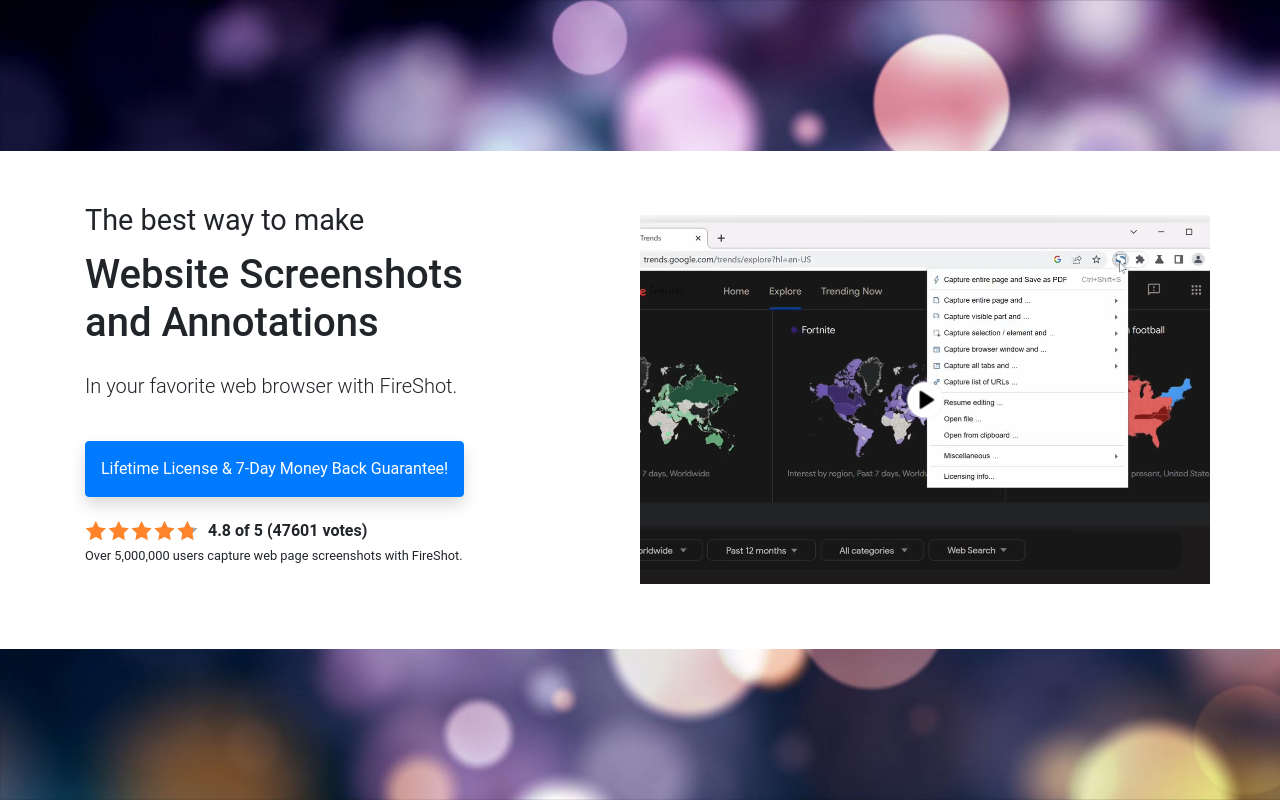
The extension integrates seamlessly into your browser workflow with customizable keyboard shortcuts, right-click context menu access, and toolbar button activation. Capture options include visible portion only, selected area, entire page with scroll, or browser window—covering every screenshot scenario. FireShot processes captures locally on your device, ensuring sensitive webpage content never leaves your computer, making it suitable for capturing confidential business pages, banking information, or private communications that shouldn’t be uploaded to cloud services.
Key Features
- Full Page Capture: Automatically scrolls and captures entire webpage content regardless of length, stitching sections seamlessly into single image.
- Multiple Capture Modes: Choose from visible area, selected region, entire page, or browser window captures depending on your needs.
- PDF Export with Links: Save captures as PDF documents with clickable hyperlinks preserved for professional documentation.
- Multiple Image Formats: Export as PNG for lossless quality, JPEG for smaller sizes, or GIF for simple graphics.
- Offline Processing: All captures processed locally on your device—no cloud uploads protecting sensitive content privacy.
- One-Click Capture: Single toolbar click or keyboard shortcut initiates capture without navigating menus.
- Clipboard Support: Copy captures directly to clipboard for immediate pasting into documents, emails, or applications.
- Print Integration: Print captures directly without saving files, perfect for quick physical documentation.
- Annotation Tools (Pro): Add arrows, text, highlights, and shapes to captures before saving.
- Batch Capture (Pro): Capture multiple tabs or pages simultaneously for efficient bulk documentation.
- Custom Save Locations: Configure default save folders and file naming conventions for organized archives.
- Browser Integration: Access via toolbar button, keyboard shortcuts, or right-click context menu.
- Cross-Browser Support: Available for Chrome, Firefox, Microsoft Edge, and Opera browsers.
- Delayed Capture: Set timer for capturing dropdown menus, tooltips, or hover states.
- High DPI Support: Captures retina and high-resolution displays at native quality.
What’s New in FireShot 2026
- Manifest V3 Compliance: Updated Chrome extension architecture meeting Google’s latest security requirements.
- Improved Scroll Capture: Better handling of sticky headers, floating elements, and complex page layouts.
- Enhanced PDF Engine: Faster PDF generation with improved text rendering and smaller file sizes.
- Dark Mode Interface: Extension popup and editor now support system dark mode preferences.
- Performance Optimization: Reduced memory usage during long page captures preventing browser slowdowns.
- Better Lazy Loading: Improved detection and loading of lazy-loaded images before capture.
- WebP Format Support: Export captures in modern WebP format for optimal quality-to-size ratio.
- Keyboard Shortcut Customization: Configure custom shortcuts through browser extension settings.
System Requirements
Supported Browsers
- Google Chrome version 88 or later
- Mozilla Firefox version 78 or later
- Microsoft Edge (Chromium-based) version 88 or later
- Opera version 74 or later
Operating Systems
- Windows 7, 8, 10, or Windows 11
- macOS 10.12 Sierra or later
- Linux (any distribution supporting listed browsers)
- Chrome OS
Hardware Requirements
- Minimum 2GB RAM (4GB recommended for long page captures)
- 50MB available disk space for extension
- Additional space for saved captures
How to Install and Use FireShot
- Open Extension Store: Navigate to Chrome Web Store, Firefox Add-ons, or Edge Add-ons depending on your browser.
- Search FireShot: Type “FireShot” in search bar and select official extension by screenshot.net.
- Install Extension: Click “Add to Chrome” or equivalent button and confirm installation prompt.
- Pin to Toolbar: Click extensions puzzle icon and pin FireShot for easy toolbar access.
- Navigate to Page: Go to webpage you want to capture—wait for complete loading.
- Click FireShot Icon: Select capture mode from dropdown—Entire Page, Visible Part, or Selection.
- Wait for Capture: For long pages, watch progress as FireShot scrolls and captures sections.
- Save or Edit: Choose Save as PDF, Save as Image, Copy to Clipboard, or open Editor.
- Configure Settings: Right-click toolbar icon and select Options to customize default behaviors.
FireShot vs Other Screenshot Extensions
| Feature | FireShot | Awesome Screenshot | Nimbus |
|---|---|---|---|
| Price | Free / $60 Pro | Free / $6/mo | Free / $5/mo |
| Full Page Capture | Yes (Free) | Yes (Free) | Yes (Free) |
| PDF Export | Yes with links | Yes | Yes |
| Offline Mode | 100% Offline | Cloud-based | Cloud optional |
| Annotation | Pro only | Free | Free |
| Best For | Privacy-focused users | Team collaboration | Video recording |
Who Should Use FireShot
- Web Developers: Document designs, capture bug reports with full page context, archive website versions.
- Digital Marketers: Capture competitor landing pages, document ad placements, archive campaign results.
- Researchers: Archive online articles before deletion, capture sources for citations, document web evidence.
- Customer Support: Capture error pages for bug reports, document customer-reported issues with full context.
- Legal Professionals: Archive webpage evidence for litigation, capture timestamped documentation.
- Privacy-Conscious Users: Anyone needing screenshots without cloud upload or data sharing.
Frequently Asked Questions
Is FireShot completely free?
FireShot offers a fully functional free version covering full page capture, PDF/image export, and clipboard copying. The Pro version ($60 one-time) adds annotation tools, batch capture, and advanced editing. Most users find the free version sufficient for everyday needs.
Does FireShot upload my screenshots to the cloud?
No, FireShot processes all captures locally on your device. Screenshots never leave your computer unless you manually upload them elsewhere, making it ideal for capturing sensitive or confidential web content.
Why are some elements missing from my capture?
Lazy-loaded images and dynamic content may not capture if they haven’t loaded. Scroll through the page first to load all content, then capture. Some sites with complex JavaScript may require the delayed capture feature.
Can FireShot capture pages requiring login?
Yes, since FireShot runs as browser extension, it captures exactly what you see including logged-in pages, password-protected content, and authenticated sessions—the capture reflects your current browsing session.
How do I capture dropdown menus or hover states?
Use the delayed capture feature to set a timer, giving you time to open menus or hover over elements before capture begins. This captures dynamic UI states that disappear on click.
Final Verdict
FireShot stands out as the premier choice for users prioritizing privacy and simplicity in webpage screenshots. While competitors offer more annotation tools in free tiers, FireShot’s offline-only processing and reliable full-page capture make it the safest option for sensitive content. The one-time Pro purchase versus monthly subscriptions offers better long-term value for power users. For straightforward webpage documentation without cloud dependencies, FireShot delivers professional results with minimal complexity.
Download Options
Download FireShot
Download NowSafe & Secure
Verified and scanned for viruses
Regular Updates
Always get the latest version
24/7 Support
Help available when you need it