FileMenu Tools

What is FileMenu Tools?
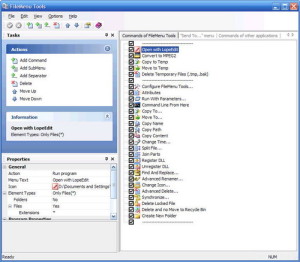
FileMenu Tools is a Windows shell extension that customizes and enhances the right-click context menu in File Explorer, adding powerful file operations, organizing existing menu items, and enabling custom commands for streamlined workflow automation. Developed by LopeSoft, FileMenu Tools transforms the basic Windows context menu into a comprehensive toolbox containing file operations like secure deletion, advanced copying, file splitting/joining, attribute changing, and dozens of other functions accessible with a single right-click. The application addresses Windows’ limited built-in context menu capabilities by adding professional file management tools.
The software organizes additions into logical groups: file operations (copy/move to folder, synchronize folders), file attributes (change timestamps, set attributes), sending files (email attachments, FTP upload), advanced renaming, file hashing, and folder size analysis. Users can enable only the features they use, preventing menu bloat while maintaining quick access to frequently needed operations. The built-in commands eliminate the need for separate utilities—file splitting previously requiring dedicated software becomes a right-click operation; secure file deletion that overwrites data before removal becomes instantly accessible.
Beyond adding commands, FileMenu Tools manages the context menu itself. Windows accumulates context menu entries from installed applications, often creating cluttered menus where finding options requires scrolling through dozens of irrelevant items. FileMenu Tools can hide, reorder, or organize these entries, restoring context menu usability. The custom command feature allows creating menu entries that run scripts, executables, or command-line operations on selected files—enabling workflow automation through simple right-clicks. For power users frustrated by Windows’ limited context menu and file operation capabilities, FileMenu Tools provides the extensibility and organization the operating system lacks.
Key Features
- Copy/Move To Folder: Copy or move files to predefined or recently used folders.
- Advanced Renamer: Batch rename files with patterns, sequences, and replacements.
- Change Attributes: Modify file attributes (read-only, hidden, system) easily.
- Change Timestamps: Set creation, modification, and access dates on files.
- Split/Join Files: Split large files into parts and rejoin them.
- Secure Delete: Permanently delete files by overwriting data before removal.
- Copy Path/Name: Copy full path or filename to clipboard.
- Folder Size: Show folder sizes directly in context menu.
- Calculate Hash: Generate MD5, SHA1, SHA256 checksums for files.
- Synchronize Folders: Compare and sync folder contents.
- Create Shortcut: Generate shortcuts with custom icons and targets.
- Send To Extensions: Add custom destinations to Send To menu.
- Custom Commands: Create menu items running scripts or programs.
- Menu Organization: Hide, show, and reorder context menu entries.
- Submenu Grouping: Organize commands into submenus reducing clutter.
Built-in Commands Categories
- File Operations: Copy/move to folder, synchronize, compare files
- Attributes: Change attributes, timestamps, icons
- Security: Secure delete, take ownership, change permissions
- Clipboard: Copy name, path, UNC path, folder contents
- Split/Join: Divide files into parts, combine parts into original
- Checksum: Calculate and verify file hashes
- Renaming: Batch rename with advanced patterns
- Shortcuts: Create shortcuts with customization
System Requirements
Supported Systems
- Windows 7, 8, 8.1, 10, or 11
- 32-bit and 64-bit versions supported
- Administrator rights for installation
Hardware Requirements
- Any processor supporting Windows 7+
- 50 MB free hard disk space
- No significant RAM requirements
How to Use FileMenu Tools
- Download and Install: Get FileMenu Tools from LopeSoft website, run installer as administrator.
- Launch Configuration: Open FileMenu Tools from Start menu to access settings.
- Review Commands: Browse available commands in each category.
- Enable Desired Features: Check boxes next to commands you want in context menu.
- Configure Favorites: Set up frequently used folders for Copy/Move To operations.
- Create Custom Commands: Use Custom Commands tab to add your own menu items.
- Organize Third-Party Menu: Use Commands of Other Applications to manage installed software entries.
- Apply Changes: Click Apply to activate your configuration.
- Test in Explorer: Right-click files/folders in Explorer to see new menu items.
- Refine Setup: Adjust enabled commands based on actual usage patterns.
FileMenu Tools vs Alternatives
| Feature | FileMenu Tools | Easy Context Menu | Right Click Enhancer |
|---|---|---|---|
| Price | Free (Pro version $11) | Free | Free |
| Built-in Commands | Extensive | Moderate | Limited |
| Custom Commands | Yes (advanced) | Yes (basic) | Yes (basic) |
| Menu Organization | Yes | No | Limited |
| Windows 11 Support | Yes | Limited | Yes |
| Best For | Power users | Quick additions | Simple enhancements |
Pros and Cons
Pros
- Comprehensive Tools: Dozens of useful file operations built-in.
- Custom Commands: Create your own context menu items for any operation.
- Menu Organization: Clean up cluttered context menus from other applications.
- Free Version: Core functionality available without payment.
- Regular Updates: Active development with Windows version support.
- Submenu Organization: Group commands to prevent menu bloat.
- Selective Enable: Activate only features you actually use.
- Windows 11: Full support for Windows 11’s new context menu.
Cons
- Pro Features Paid: Some commands require $11 upgrade.
- Windows Only: Not available for macOS or Linux.
- Learning Curve: Many features require exploration to discover.
- Shell Extension: Bugs could affect Explorer stability.
- Configuration Complexity: Custom commands require technical understanding.
Frequently Asked Questions
Is FileMenu Tools safe to use?
Yes, FileMenu Tools is established software from a reputable developer with over 15 years of development history. As a shell extension modifying Windows Explorer behavior, ensure you download from the official LopeSoft website rather than third-party sources. The software doesn’t contain adware or unwanted bundled programs when downloaded officially.
Will FileMenu Tools slow down my context menu?
Enabling many features can marginally slow context menu appearance, but the effect is minimal on modern systems. The ability to disable unused features and organize commands into submenus mitigates potential slowdown. If you enable only actively used features, performance impact is negligible.
What’s the difference between free and Pro versions?
The free version includes most built-in commands and basic custom command functionality. The Pro version ($11 one-time) adds advanced commands like extended delete, command argument variables, and some specialized file operations. Most users find the free version sufficient; evaluate your needs before purchasing.
Final Verdict
FileMenu Tools transforms Windows Explorer’s context menu from a basic right-click interface into a powerful file management toolbox. The built-in commands—secure deletion, file splitting, batch renaming, hash calculation—eliminate the need for multiple single-purpose utilities. The custom command feature enables workflow automation through simple right-clicks, and menu organization capabilities restore usability to context menus cluttered by accumulated software installations.
For power users and professionals who spend significant time managing files, FileMenu Tools provides meaningful productivity improvements. The free version offers substantial functionality, with the $11 Pro upgrade worthwhile for users needing advanced features. While the learning curve requires exploration and the technical nature of custom commands demands some expertise, the payoff—immediate access to powerful file operations through right-click—justifies the initial setup investment. For anyone frustrated by Windows’ limited built-in file operations or cluttered context menus, FileMenu Tools delivers the extensibility and organization the operating system should have included.
Download Options
Download FileMenu Tools
Download NowSafe & Secure
Verified and scanned for viruses
Regular Updates
Always get the latest version
24/7 Support
Help available when you need it