ChronoSync
What is ChronoSync?
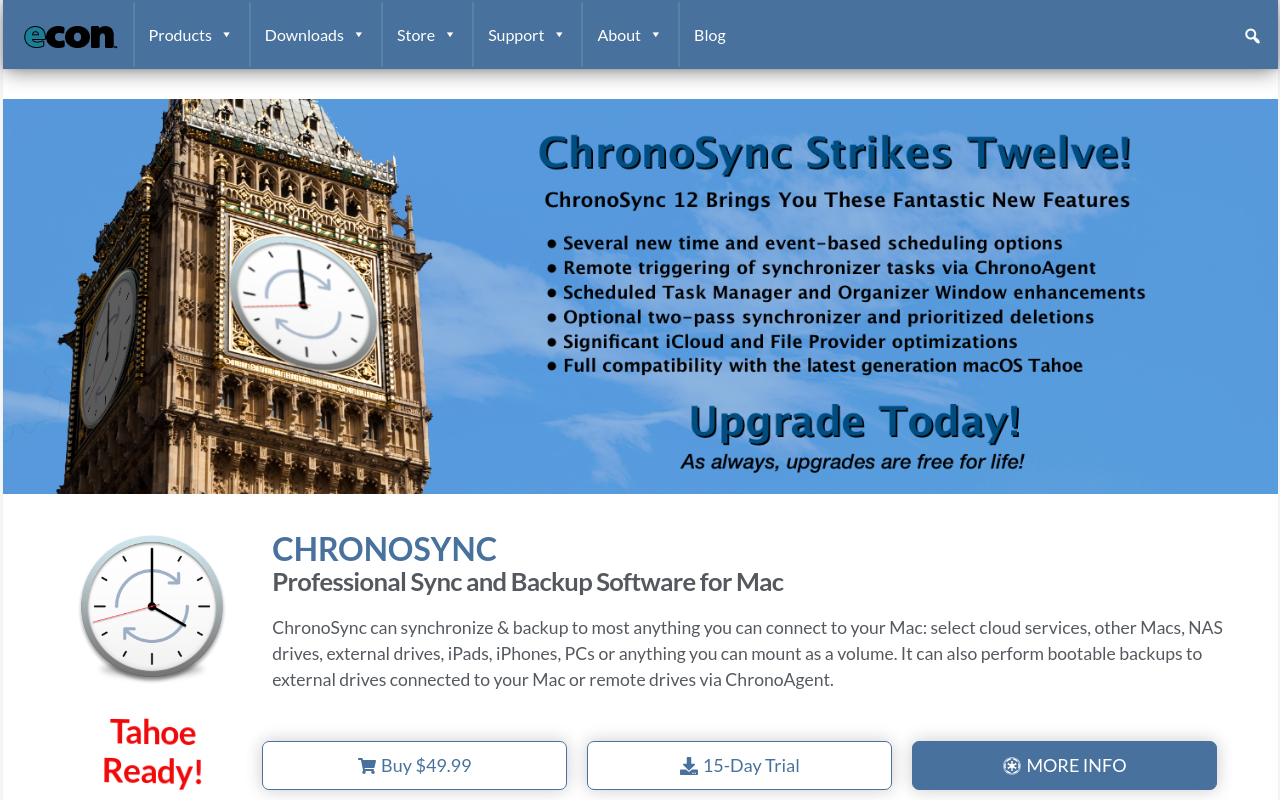
ChronoSync is a professional-grade file synchronization and backup application for macOS that provides comprehensive tools for keeping files synchronized between multiple Macs, external drives, network volumes, and cloud storage. Developed by Econ Technologies and continuously refined since 2002, ChronoSync has become the trusted choice for Mac users who need reliable, automated file management beyond what Apple’s built-in solutions provide.
The software excels at bidirectional synchronization—ensuring changes made on either side are reflected everywhere—while offering powerful one-way backup capabilities for traditional archival needs. Whether you’re synchronizing a laptop and desktop Mac, backing up to external drives, mirroring files to NAS devices, or maintaining offsite backups through cloud storage, ChronoSync handles complex sync scenarios that would be impossible with basic backup tools.
ChronoSync distinguishes itself through precision and control. Before any sync operation, the application presents a detailed preview showing exactly which files will be copied, updated, or deleted, preventing accidental data loss. Conflict handling options let you decide how to manage files changed in multiple locations simultaneously. Rules-based filtering excludes unwanted files, while scheduling ensures backups happen automatically without manual intervention.
For professionals managing large file collections—photographers with massive image libraries, video editors with project files across multiple drives, developers maintaining code across machines—ChronoSync provides the reliability and flexibility essential for protecting critical work. The companion InterConneX app enables iOS devices to participate in sync operations, while ChronoAgent allows backing up remote Macs over the network. For macOS users who take data protection seriously, ChronoSync offers unmatched synchronization capabilities.
Key Features
- Bidirectional Sync: Synchronize files in both directions, with intelligent handling of conflicts when files change on both sides.
- Bootable Backup: Create complete bootable clones of your Mac’s startup drive for disaster recovery.
- Scheduled Automation: Set backups to run automatically on schedule, at mount, on wake, or based on custom triggers.
- Cloud Synchronization: Sync directly with Amazon S3, Google Cloud, Backblaze B2, Wasabi, and SFTP servers.
- Dissect Packages: Intelligent handling of macOS package files, syncing only changed components within bundles.
- Rules-Based Filtering: Include or exclude files based on name, extension, date, size, or custom criteria.
- Trial Sync Preview: See exactly what will happen before executing sync operations.
- Verification: Optional byte-for-byte verification ensuring perfect copies after sync completes.
- Archiving: Move replaced files to archive folder instead of deleting, enabling recovery of previous versions.
- ChronoAgent: Backup other Macs on your network through remote agent software.
- Touch-Free Sync: Automatic execution when drives mount, wake from sleep, or scheduled times.
- Email Notifications: Receive detailed reports on sync completion, errors, or attention required.
- Encryption: Protect backups with AES-256 encryption for secure storage on external or cloud destinations.
- Multi-Container Sync: Run multiple sync operations in sequence or parallel within single container.
- Safety Net Options: Prevent accidental deletion of large amounts of data through configurable safety limits.
What’s New in ChronoSync 2026
- Apple Silicon Native: Fully optimized for M1/M2/M3 Macs with significant performance improvements.
- macOS Sonoma Support: Full compatibility with latest macOS including new security permissions.
- Enhanced APFS Support: Better handling of APFS-specific features including snapshots and space sharing.
- Improved Cloud Performance: Faster sync operations with cloud storage providers through optimized transfers.
- Updated User Interface: Modernized design consistent with current macOS visual language.
- Better Error Recovery: Improved handling of interrupted syncs with more reliable resume capability.
- New Reporting Options: Enhanced sync reports with more detail on operations performed.
- Memory Optimization: Reduced memory footprint when syncing large file collections.
System Requirements
macOS
- macOS 10.14 Mojave or later
- macOS 14 Sonoma fully supported
- Apple Silicon (M1/M2/M3) or Intel processor
- 4GB RAM minimum (8GB recommended for large syncs)
- 100MB available disk space for application
Supported Destinations
- Local and external drives (HDD, SSD, USB, Thunderbolt)
- Network volumes (AFP, SMB, NFS)
- NAS devices (Synology, QNAP, etc.)
- Cloud storage (Amazon S3, Google Cloud, Backblaze B2, Wasabi)
- SFTP servers
- Remote Macs via ChronoAgent
How to Get Started with ChronoSync
- Download ChronoSync: Get from econtechnologies.com or Mac App Store; 15-day free trial available.
- Grant Permissions: Provide Full Disk Access in System Preferences for complete backup capabilities.
- Create Synchronizer Document: Click New to create sync task; choose sync type (Backup, Mirror, or Bidirectional).
- Select Source and Destination: Choose left target (source) and right target (destination) volumes or folders.
- Configure Options: Set rules for file handling, exclusions, archiving, and verification preferences.
- Run Trial Sync: Click Analyze to preview what will happen without making changes—review carefully.
- Execute Sync: Click Synchronize to perform the sync operation once satisfied with preview.
- Set Schedule: Configure automatic execution under Scheduling section for unattended operation.
- Enable Notifications: Set up email notifications for completion reports and error alerts.
ChronoSync vs Other Mac Backup Solutions
| Feature | ChronoSync | Time Machine | Carbon Copy Cloner |
|---|---|---|---|
| Price | $50 | Free (built-in) | $50 |
| Bidirectional Sync | Yes | No | Limited |
| Bootable Backup | Yes | No | Yes |
| Cloud Support | Extensive | No | Limited |
| Ease of Use | Moderate | Very Easy | Moderate |
| Best For | Power users/sync | Basic backup | Bootable clones |
Who Should Use ChronoSync
- Multi-Mac Users: Anyone needing to keep files synchronized between desktop and laptop Macs.
- Creative Professionals: Photographers, videographers, and designers managing large project files across drives.
- IT Administrators: Those managing backup strategies for multiple Macs in business environments.
- NAS Owners: Users wanting sophisticated sync with network-attached storage devices.
- Cloud Backup Users: Those preferring direct cloud backup without third-party services.
- Power Users: Anyone needing more control than Time Machine provides for Mac backup.
Frequently Asked Questions
Is ChronoSync better than Time Machine?
They serve different purposes. Time Machine provides simple, automatic versioned backup ideal for most users. ChronoSync offers synchronization, bootable backups, cloud support, and fine-grained control that Time Machine lacks. Many users run both for comprehensive protection.
Can ChronoSync create bootable backups?
Yes, ChronoSync can create fully bootable clones of your Mac’s startup drive. Note that Apple Silicon Macs have specific requirements for bootable external drives that ChronoSync handles correctly.
Does ChronoSync work with external SSDs?
Yes, ChronoSync works excellently with external SSDs and takes advantage of their speed for faster sync operations. USB-C, Thunderbolt, and USB-A drives all work perfectly.
Can I sync to cloud storage with ChronoSync?
Yes, ChronoSync supports direct sync to Amazon S3, Google Cloud Storage, Backblaze B2, Wasabi, and any SFTP server. This provides offsite backup without subscription to backup-specific cloud services.
How is ChronoSync different from ChronoSync Express?
ChronoSync Express (Mac App Store version) has sandboxing limitations preventing some advanced features like bootable backup and ChronoAgent. The full ChronoSync version from the developer website has no restrictions.
Final Verdict
ChronoSync represents the most capable file synchronization application available for macOS, offering power and flexibility that far exceeds Apple’s built-in tools. The learning curve is steeper than simple backup solutions, but users who invest time understanding ChronoSync’s capabilities gain unprecedented control over their data management. For users who need bidirectional sync, cloud backup, bootable clones, or complex automated backup strategies, ChronoSync is essentially without peer on macOS. Time Machine remains excellent for basic backup needs, but serious data protection requires ChronoSync’s professional capabilities.
Download Options
Download ChronoSync
Download NowSafe & Secure
Verified and scanned for viruses
Regular Updates
Always get the latest version
24/7 Support
Help available when you need it