Carbonite
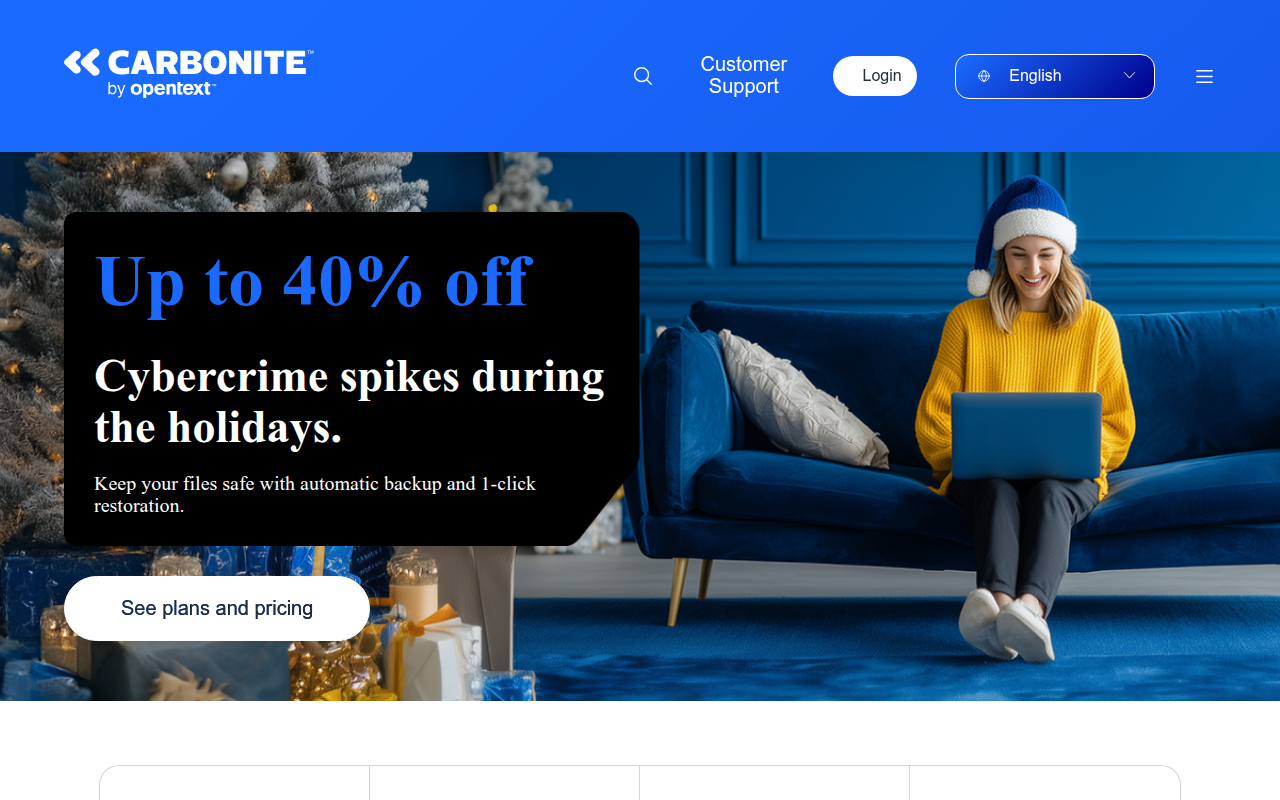
What is Carbonite?
Carbonite is an automatic cloud backup service designed to protect personal and business data by continuously backing up files to secure offsite servers. Founded in 2005 and acquired by OpenText in 2019, Carbonite has become one of the most recognized names in cloud backup, serving millions of users with set-it-and-forget-it data protection. The service automatically backs up documents, photos, videos, and other files in the background, ensuring data is protected without requiring user intervention.
What distinguishes Carbonite is its emphasis on simplicity and automation for non-technical users. Unlike backup software requiring configuration of backup sets and schedules, Carbonite installs and starts protecting data automatically. The service continuously monitors for file changes and backs them up in near-real-time, eliminating the risk of forgetting to run backups manually. This hands-off approach makes comprehensive data protection accessible to users who find traditional backup software overwhelming.
Carbonite serves consumers, home offices, and small businesses seeking reliable offsite backup without complexity. The service protects Windows PCs, Macs, and offers business plans with server backup and advanced features. Organizations choose Carbonite when they want the peace of mind of automatic cloud backup without dedicating time to backup management or worrying about local hardware failures.
Key Features
- Automatic Backup: Continuous background backup of files without user intervention or scheduled times
- Unlimited Storage: No storage limits on personal plans allowing backup of entire computers
- File Versioning: Keep multiple versions of files for recovery from accidental changes
- External Drive Backup: Protect external hard drives and USB drives (higher-tier plans)
- Mobile Access: Access backed-up files from smartphones and tablets
- File Sharing: Share files with others through secure links
- Courier Recovery: Physical hard drive shipped to you for large-scale recovery needs
- Encryption: Military-grade encryption protecting data during transfer and storage
- Hybrid Backup: Optional local backup mirror for faster recovery (some plans)
- Business Features: Centralized management, server backup, and compliance tools for business plans
Latest Updates
Carbonite continues to enhance its cloud backup service with improved performance and security features.
- Enhanced Performance: Faster backup and restore speeds with infrastructure improvements
- Improved Security: Additional encryption options and security certifications
- Better Mobile Apps: Updated iOS and Android apps with improved file access
- Ransomware Protection: Enhanced detection and recovery features for ransomware attacks
- Windows 11 Support: Full compatibility with latest Windows versions
- macOS Updates: Better support for modern macOS including Apple Silicon
- Business Enhancements: Improved administration and reporting for business customers
- Compliance Tools: Additional features for regulatory compliance requirements
System Requirements
Windows
- Operating System: Windows 7 or later (Windows 10/11 recommended)
- RAM: 1 GB minimum (2 GB recommended)
- Disk Space: 100 MB for software installation
- Internet: Broadband connection for efficient backup
macOS
- Operating System: macOS 10.13 or later
- Intel or Apple Silicon processor
- RAM: 1 GB minimum
- Internet: Broadband connection recommended
Mobile
- iOS: Version 12.0 or later
- Android: Version 5.0 or later
- Internet connection for file access
How to Install Carbonite
Getting Started
- Purchase Carbonite subscription or start free trial
- Download installer from Carbonite website
- Run installer and follow setup wizard
- Sign in with Carbonite account credentials
- Software automatically begins backing up files
- Customize backup settings if desired (optional)
- Let Carbonite run continuously in background
First Backup
- After installation, Carbonite automatically starts backing up
- Initial backup may take days depending on data size and internet speed
- Computer can be used normally during backup
- Orange dots appear next to files being backed up
- Green dots indicate files successfully backed up
- Backup continues in background automatically
File Recovery
- Right-click file or folder and select Carbonite > Restore
- Or visit Carbonite website and browse backed-up files
- Select files to restore and choose location
- Files download from cloud to computer
- For complete system recovery, use Carbonite recovery process
Pros and Cons
Pros
- Fully Automatic: Set-it-and-forget-it backup requiring zero ongoing effort
- Unlimited Storage: Personal plans include unlimited backup space
- Easy to Use: Simple installation and operation for non-technical users
- Established Provider: Long track record and financial stability
- Courier Recovery: Option to receive large restore on physical drive
- Business Plans: Server backup and management for small businesses
- Continuous Backup: Files protected immediately after changes
Cons
- Slow Initial Backup: First backup can take weeks for large data sets
- Expensive External Drive Backup: Backing up external drives requires higher-tier plan
- Limited File Types: Some file types excluded from basic plans
- No Image Backup: Cannot create full system images for bare-metal recovery
- Annual Commitment: Subscription pricing adds up over time
Carbonite vs Alternatives
| Feature | Carbonite | Backblaze | IDrive | Acronis |
|---|---|---|---|---|
| Price | $72-360/year | $99/year | $80-150/year | $50-125/year |
| Storage | Unlimited | Unlimited | Limited (varies) | Limited (varies) |
| Ease of Use | Very Easy | Very Easy | Moderate | Moderate |
| External Drives | Plus/higher | Yes | Yes | Yes |
| Image Backup | No | No | Yes | Yes |
| Courier Recovery | Yes ($100+) | Yes ($189) | Yes ($100) | N/A |
| Best For | Simplicity | Unlimited backup | Value + features | Complete protection |
Who Should Use Carbonite?
Carbonite is ideal for:
- Non-Technical Users: People wanting automatic backup without learning backup software
- Set-It-Forget-It Mindset: Users who won’t remember to run manual backups
- Small Businesses: Companies needing simple cloud backup with business features
- Large Data Sets: Users with terabytes of data benefiting from unlimited storage
- Multi-Computer Households: Families protecting multiple computers with family plans
- Peace-of-Mind Seekers: Anyone wanting confidence their data is automatically protected
Carbonite may not be ideal for:
- Budget-Conscious Users: Backblaze offers similar features at lower annual cost
- Image Backup Needs: Those wanting full system images should use Acronis or Macrium
- External Drive Users: Basic plan doesn’t backup external drives (need Plus tier)
- Impatient Users: Initial backup taking weeks may frustrate some users
Frequently Asked Questions
How much does Carbonite cost?
Carbonite Personal plans: Basic ($71.99/year for one computer), Plus ($111.99/year adds external drives and courier recovery), Prime ($149.99/year adds automatic video backup). Business plans start at $287.99/year per computer with server backup available. All personal plans include unlimited cloud storage. Prices often discounted for first year.
How long does Carbonite initial backup take?
Initial backup duration depends on data size and internet upload speed. For 100GB with typical home internet (5-10 Mbps upload), expect 3-7 days. Larger data sets can take weeks. Carbonite continues in background allowing normal computer use. Subsequent backups much faster, backing up only changed files.
Does Carbonite slow down my computer?
Carbonite designed to operate in background with minimal performance impact. It uses idle computer resources and throttles during active use. Initial backup may cause some slowdown. Users can adjust performance settings if needed. Most users don’t notice Carbonite running after initial backup completes.
Can Carbonite backup external drives?
External drive backup requires Carbonite Plus or Prime plans. Basic plan only backs up internal drives. Once enabled, Carbonite automatically backs up connected external drives. This is important for users storing photos, videos, or backups on external storage.
What happens if I stop paying for Carbonite?
If subscription lapses, backup stops and files remain in Carbonite cloud for grace period. After grace period, backed-up data may be deleted. To recover files, must renew subscription. Important to download needed files before letting subscription expire. Carbonite provides warnings before data deletion.
Final Verdict
Carbonite has earned its position as a leading cloud backup service through unwavering focus on simplicity and automation. The service removes all friction from data protection, making comprehensive backup accessible to users who find traditional backup solutions overwhelming or forget to run manual backups.
The platform’s strengths lie in its automatic operation, unlimited storage on personal plans, and established reputation. Non-technical users appreciate not having to configure backup sets, schedules, or worry about storage limits. The service simply works invisibly in the background.
Non-technical users, small businesses, and anyone wanting hassle-free data protection should consider Carbonite. While more technical users might prefer feature-rich alternatives like Acronis, Carbonite excels at its core mission of making backup so simple that anyone can protect their irreplaceable data. The peace of mind knowing files are automatically protected often justifies the subscription cost.
Developer:
OpenText Corporation
Download Options
Safe & Secure
Verified and scanned for viruses
Regular Updates
Always get the latest version
24/7 Support
Help available when you need it